Pandas是什么
Pandas 库是一个免费、开源的第三方 Python 库,是 Python 数据分析必不可少的工具之一,它为 Python 数据分析提供了高性能,且易于使用的数据结构,即 Series 和 DataFrame。Pandas 自诞生后被应用于众多的领域,比如金融、统计学、社会科学、建筑工程等。
Pandas 库基于 Python NumPy 库开发而来,因此,它可以与 Python 的科学计算库配合使用。Pandas 提供了两种数据结构,分别是 Series(一维数组结构)与 DataFrame(二维数组结构),这两种数据结构极大地增强的了 Pandas 的数据分析能力。在本套教程中,我们将学习 Python Pandas 的各种方法、特性以及如何在实践中运用它们。
出自: http://c.biancheng.net/pandas/
安装Pandas 1 2 3 pip install xlwt
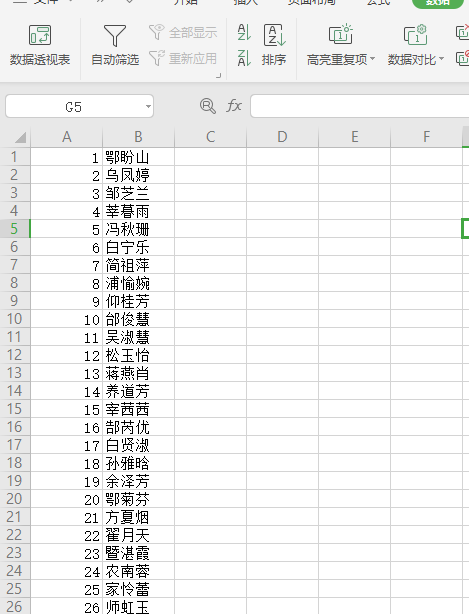
读取文件 读取Excel 常规读取 1 2 3 import pandas as pd"./student.xlsx" )
读取无表头的excel
1 2 3 import pandas as pd"./student.xlsx" , header=None )
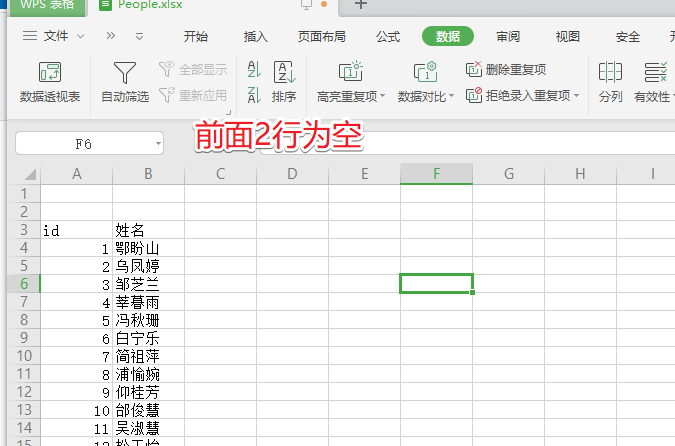
错位读取
1
2
3
import pandas as pd"./student.xlsx" , header=2 )
读取csv 去除csv空格(去空格读取)
1
2
3
import pandas as pd"./student.xlsx" , sep="\s*,\s*" )
保存文件 保存excel文件 1 2 3 4 import pandas as pd"./student.xlsx" )"./table.xlsx" , index=False , sheet_name="sheet1" )
同时写多个sheet 1 2 3 4 5 6 7 8 9 10 11 12 import pandas as pd"./student1.xlsx" )"./student2.xlsx" )"./student3.xlsx" )r"./temp/output.xlsx" )False , sheet_name="sheet1" ) False , sheet_name="sheet2" )False , sheet_name="sheet3" )
查询数据 数据筛选、过滤
方法1 1 2 3 4 import pandas as pd"./student.xlsx" )"列名" ].apply(lambda x: x == "数据值" )]
方法2 1 2 3 4 import pandas as pd"./student.xlsx" )"语文" ] < 60 ]
多条件查询 1 2 3 4 5 file = './excel/books.xlsx' "id" )'价格' ].apply(lambda x: x < 200 )] \ '价格' ].apply(lambda x: x > 100 )]print (r)
行操作 追加其他表数据 向下合并其他表的数据
1 2 3 4 5 import pandas as pd"./student.xlsx" , sheet_name="Sheet2" )"./student.xlsx" , sheet_name="Sheet3" )True )
动态合并多个表格(工具函数)
1 2 3 4 5 6 7 8 9 10 11 12 13 14 15 16 import pandas as pdclass PandasUtil : @staticmethod def merge_tables (tables ):""" 合并表格(相同格式,上下合并) """ None for table in tables:if result is None :continue True )True )return result
新建新行 添加新行,{“id”:7, “name”:”ken”, “语文”:100, “数学”:90, “英语”:70}
1 2 3 4 5 6 import pandas as pd"./student.xlsx" )"id" :7 , "name" :"ken" , "语文" :100 , "数学" :90 , "英语" :70 }) True ) print (students)
修改单元格数据 1 2 3 4 5 import pandas as pd"./student.xlsx" )0 , 'name' ] = "kelly" print (students)
修改一行数据 修改第一行数据为: {“id”:100, “name”:”Vincent”, “语文”:100}
1 2 3 4 5 6 import pandas as pd"./student.xlsx" )0 ] = pd.Series({"id" :100 , "name" :"Vincent" , "语文" :100 })print (students)
插入一行数据 1 2 3 4 5 6 7 8 9 10 import pandas as pd"./student.xlsx" )"id" :100 , "name" :"Boy1" , "语文" :100 }) 3 ] 3 :] True ) \True )print (students)
按条件删除数据 按条件删除行数据
单条件删除 1 2 3 4 5 6 import pandas as pd"./student.xlsx" )"列明" ] == "数据值" ].indexTrue )
多条件删除 1 2 3 4 5 import pandas as pd"./student.xlsx" )"收/支" ] == "支出" ) & (table["交易状态" ] == "交易关闭" )].indexTrue )
删除空行 1 2 3 4 import pandas as pd"./student.xlsx" )"交易时间" ], inplace=True )
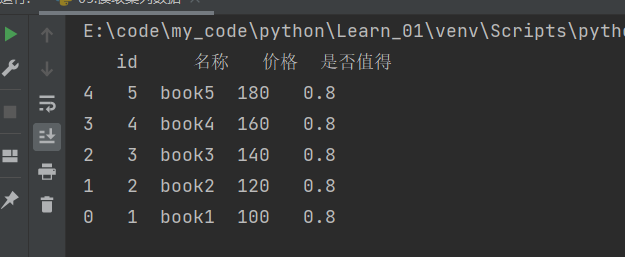
排序 单值排序 按价格倒序排序
ascending=False 为倒序排序
1 2 3 4 5 6 7 import pandas as pd'./excel/books.xlsx' "价格" , inplace=True , ascending=False ) print (books)
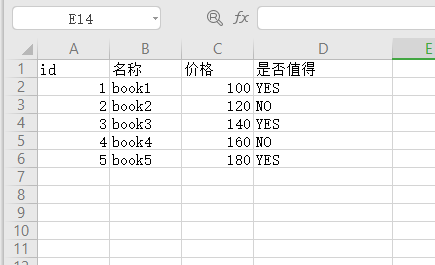
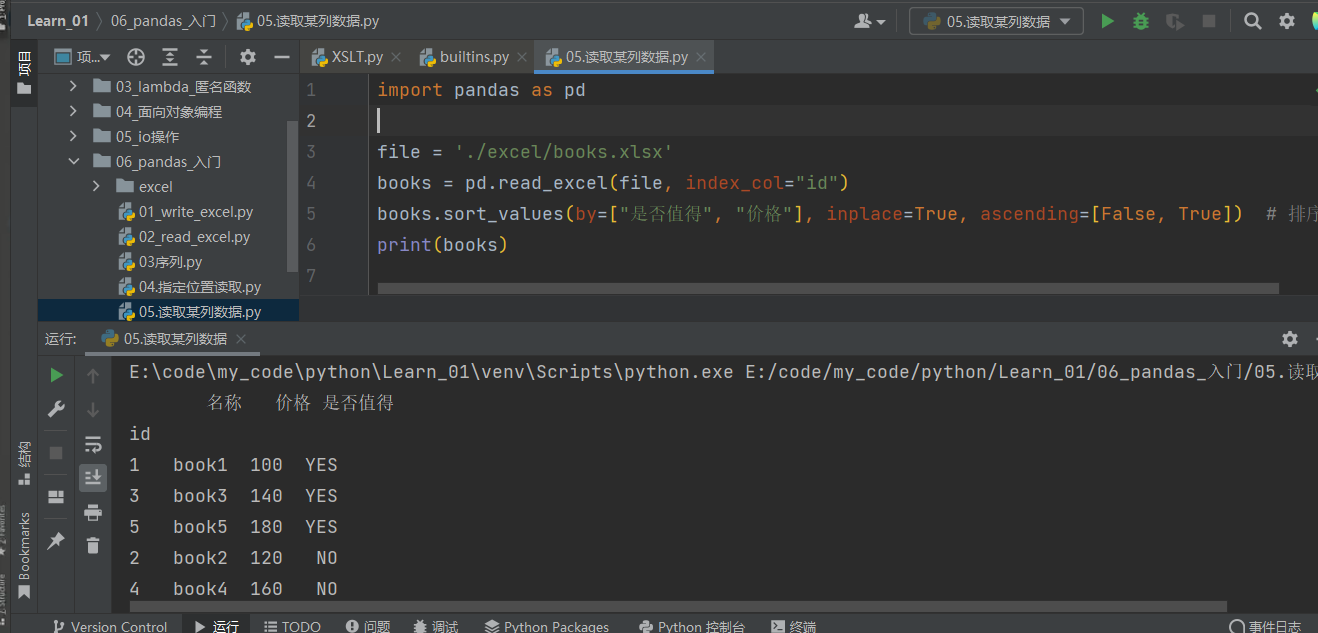
多值排序
先按是否值得排序,再按价格排序
1 2 3 4 5 file = './excel/books.xlsx' "id" )"是否值得" , "价格" ], inplace=True , ascending=[False , True ]) print (books)
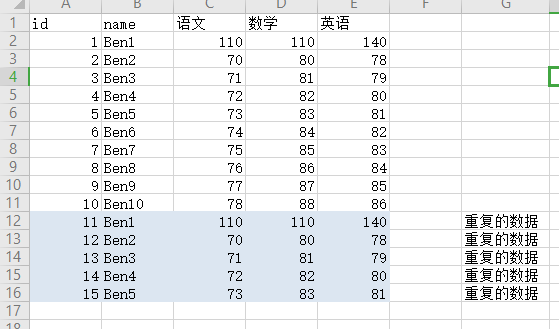
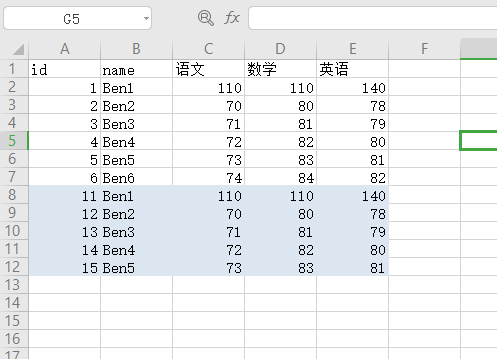
去重, 查找重复数据 原文链接
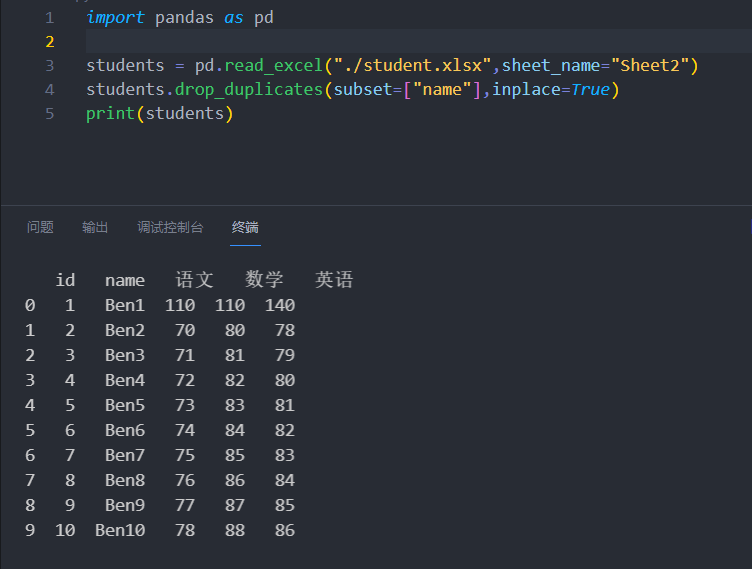
去掉重复数据
1 2 3 4 5 6 import pandas as pd"./student.xlsx" )"name" ], inplace=True ) print (students)
subset=[“name”] 查询条件, 可以是多个列例如 subset=[“name”, “语文”, “数学”, “英语”]
keep=”first” 默认保留开头
查找重复项
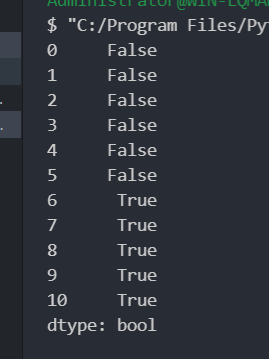
1 2 3 4 5 import pandas as pd"./student.xlsx" , sheet_name="Sheet2" )"name" ])print (dupe)
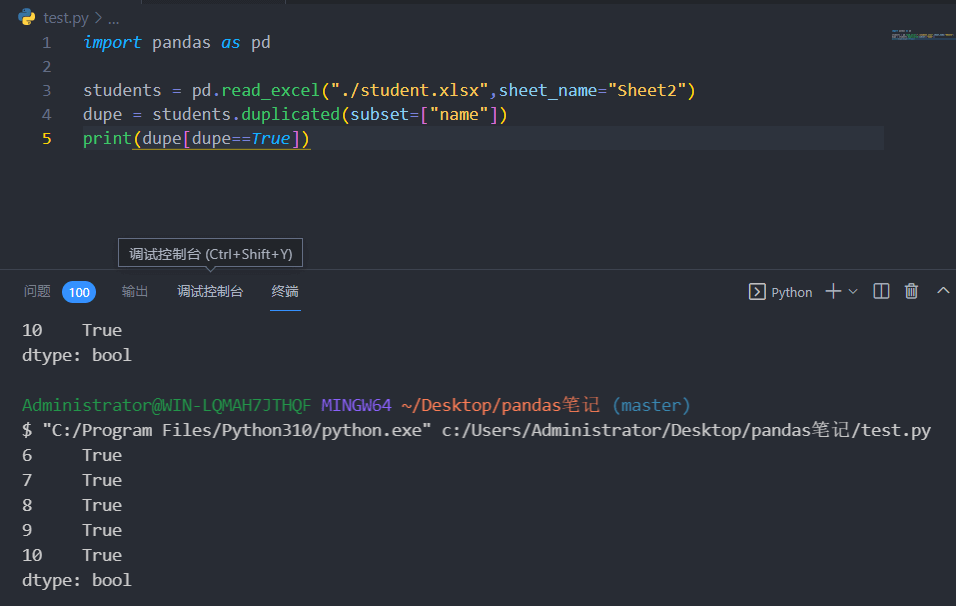
1 2 3 4 5 import pandas as pd"./student.xlsx" , sheet_name="Sheet2" )"name" ]) print (dupe[dupe==True ])
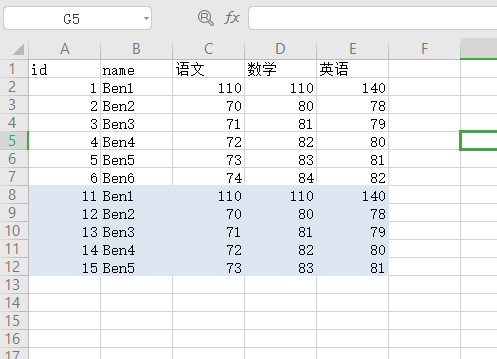
显示7-11行是重复数据
序列是由0开始数的, index为6表示excel表中的第7行数据
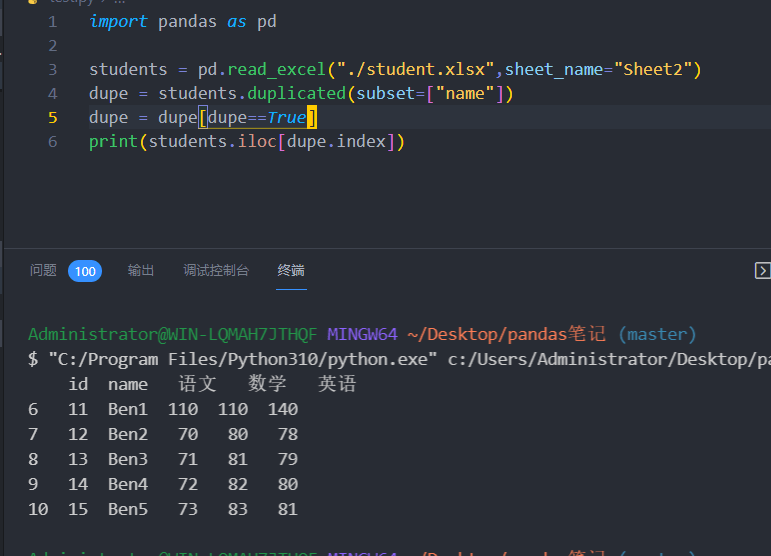
用iloc[index]定位重复数据
1 2 3 4 5 6 7 import pandas as pd"./student.xlsx" , sheet_name="Sheet2" )"name" ]) True ]print (students.iloc[dupe.index])
定位数据 使用iloc
1 2 3 4 5 import pandas as pd"./student.xlsx" , sheet_name="Sheet2" )0 ] print (r)
df.iloc[0] 第0行数据(series)
df.iloc[[0]] 第0行数据(dataframe)
df.iloc[[0, 1]] 第0、1行数据(dataframe)
df.iloc[:3] 前三行数据(dataframe)
df.iloc[[True, False, True]] 第0、2行数据(dataframe)
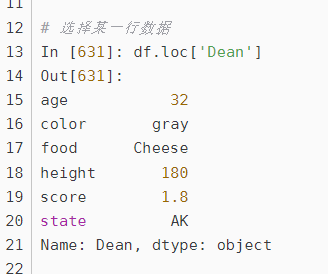
使用loc
1 2 3 df = pd.read_excel("./student.xlsx" , sheet_name="Sheet2" , index_col="name" ) "Dean" ]print (r)
遍历数据 遍历每一行数据
1 2 3 4 5 6 import pandas as pd"./student.xlsx" )for index, row in table.iterrows():print (index)print (row["c1" ])
列操作 增加列 追加列
1 2 3 4 import pandas as pd"./student.xlsx" )"数学" ] = 100
列运算 计算新列, 列计算(计算列)
1 2 3 4 5 import pandas as pd'./excel/books.xlsx' "优惠价" ] = books["价格" ] * books["折扣" ]
使用匿名函数, 计算新列
1 2 3 4 5 import pandas as pd'./excel/books.xlsx' "id" )"价格" ] = books["价格" ].apply(lambda x: x + 2 )
判断列是否存在 1 2 3 4 import pandas as pd"./student.xlsx" )print ("数学" in table.columns)
删除列 1 2 3 4 import pandas as pd"./student.xlsx" )'语文' ], inplace=True )
插入列 插入到第二列
1 2 3 4 5 import pandas as pd"./student.xlsx" )1 , column="年龄" , value=100 ) print (students)
调整列位置 调整收/支列到第一列
1 2 3 4 5 6 7 8 9 10 11 12 13 14 15 16 17 def change_col_place (table, name, new_place, new_name=None ):""" 移动列 table: 表格 name: 原列名 new_plack: 新位置 new_name: 新列名 """ 1 , inplace=True )if new_name is None :else :"./student.xlsx" )"收/支" , 0 , "收/支" )
修改列名 1 2 3 4 import pandas as pd"./student.xlsx" )"旧列名1" :"新列名1" , "旧列名2" :"新列名" }, inplace=True )
批量修改列数据 修改列数据
案例: 把金额列的¥去掉
1
2
3
4
import pandas as pd"./student.xlsx" )"金额" ] = table["金额" ].apply(lambda x: x.replace("¥" , "" ))
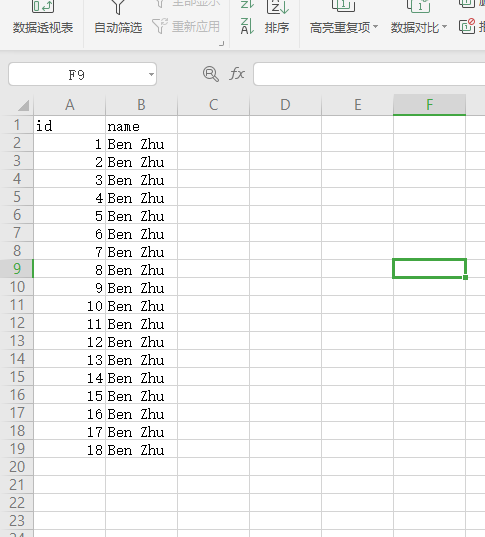
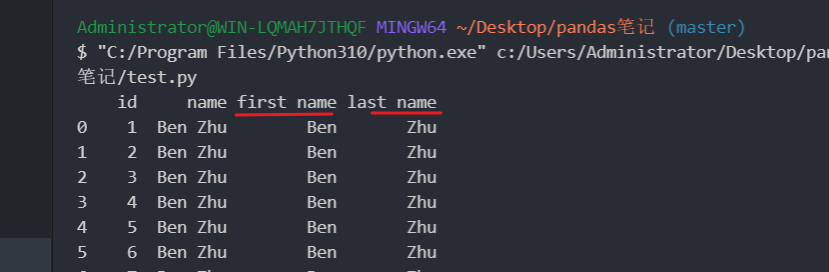
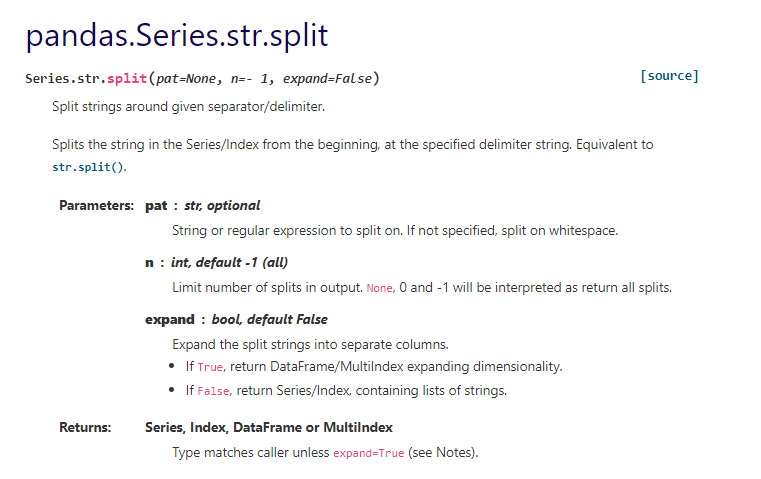
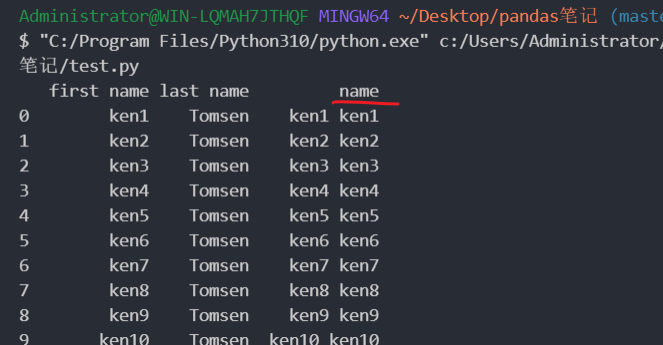
拆分列 1 2 3 4 5 6 7 import pandas as pd"./books.xlsx" , sheet_name="Sheet2" )'name' ].str .split(expand=True ) "first name" ] = df[0 ] "last name" ] = df[1 ] print (books)
拆分列api原文
pat: 字符串或正则表达式以拆分。如果未指定,则在空格上拆分。
n: 拆分后保留多少个元素. -1表示保留全部
expand: 将拆分字符串展开到单独的列中 expand一般设置为True
合并列 1 2 3 4 5 import pandas as pd"./student.xlsx" , sheet_name="Sheet1" )"name" ] = student["first name" ] +" " + student["first name" ]print (studentr)
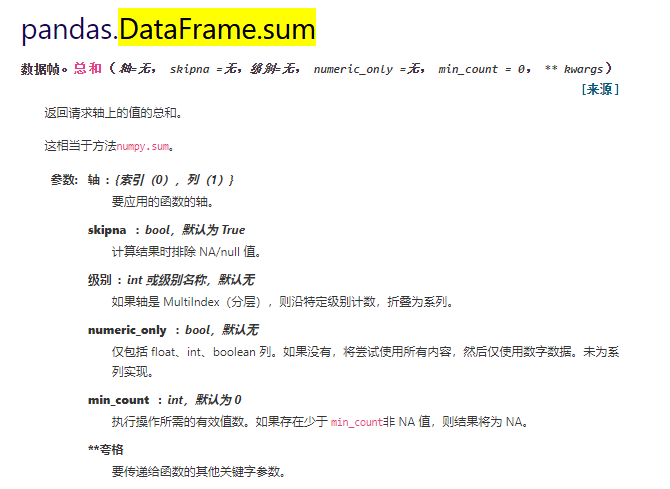
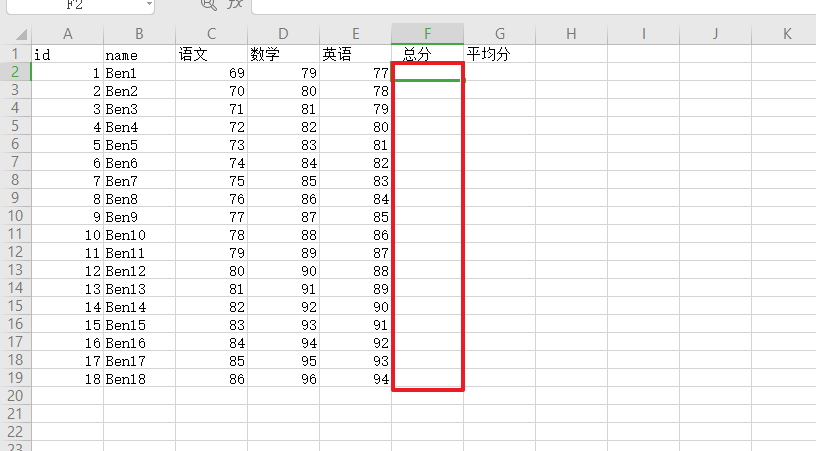
求总和和求平均值 按行求和
原文地址: https://pandas.pydata.org/pandas-docs/stable/reference/api/pandas.DataFrame.sum.html#pandas-dataframe-sum
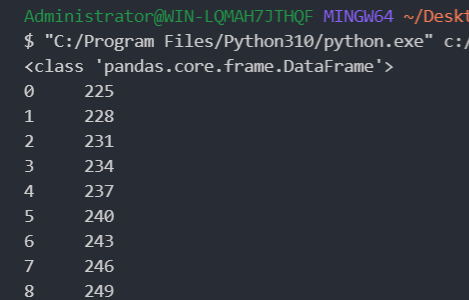
1 2 3 4 5 6 import pandas as pd"./student.xlsx" , sheet_name="Sheet2" )"语文" , "数学" , "英语" ]].sum (axis=1 ) print (type (student[["语文" , "数学" , "英语" ]])) print (row_sum)
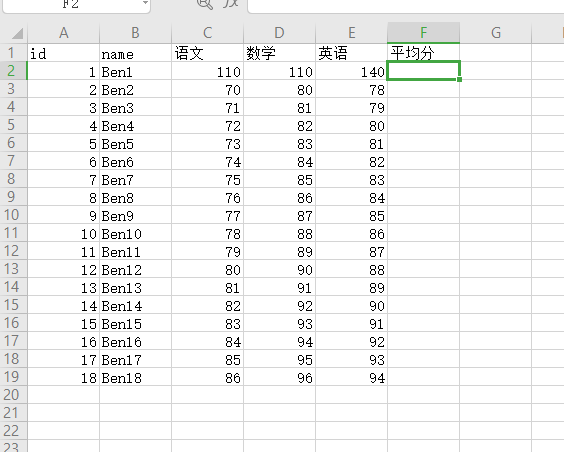
按行求平均值
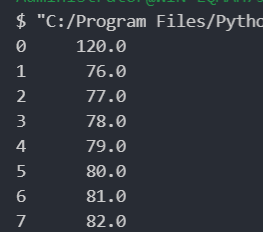
1 2 3 4 5 import pandas as pd"./student.xlsx" , sheet_name="Sheet2" )"语文" , "数学" , "英语" ]].mean(axis=1 ) print (row_avg)
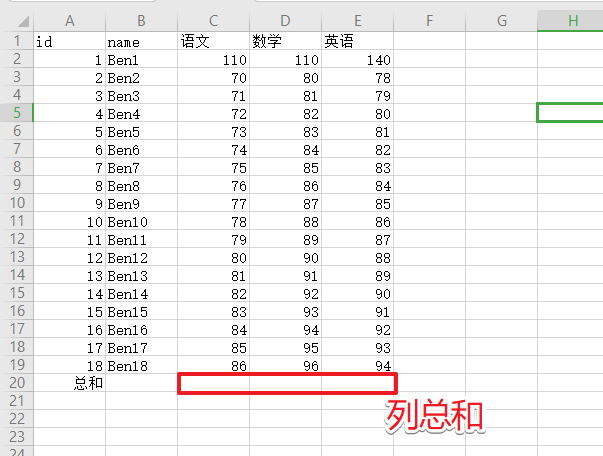
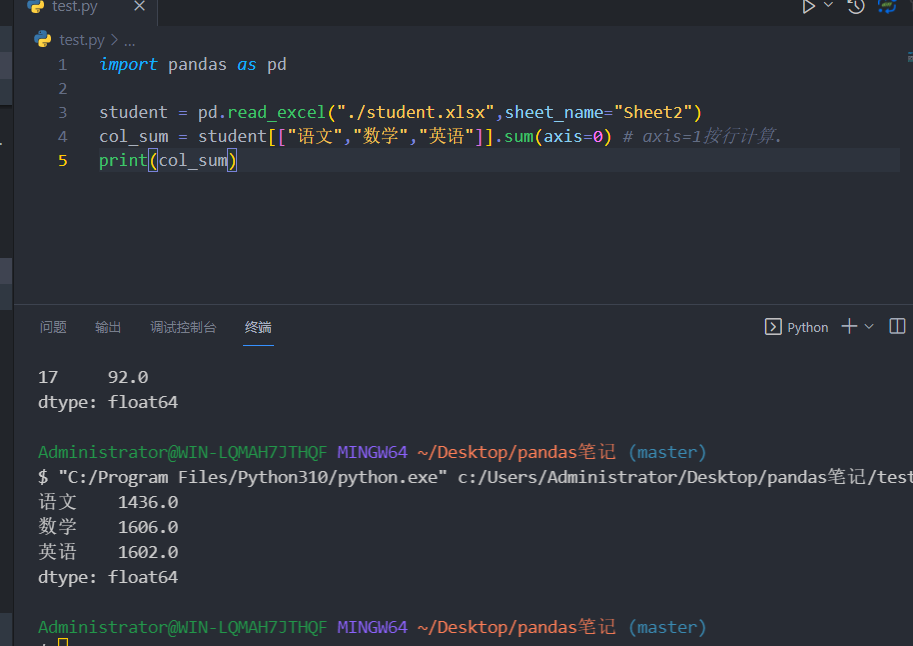
计算列总和
1
2
3
4
5
import pandas as pd"./student.xlsx" , sheet_name="Sheet2" )"语文" , "数学" , "英语" ]].sum (axis=0 ) print (col_sum)
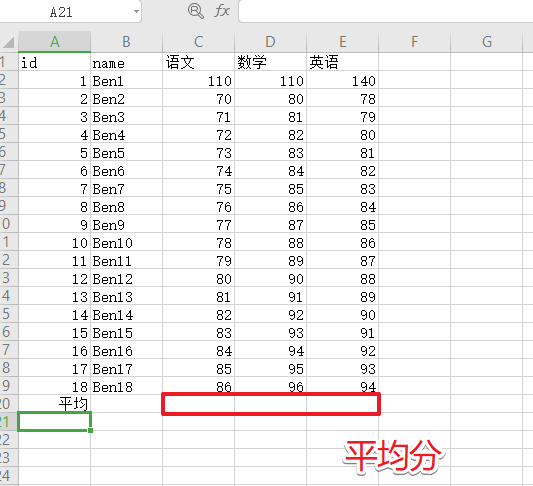
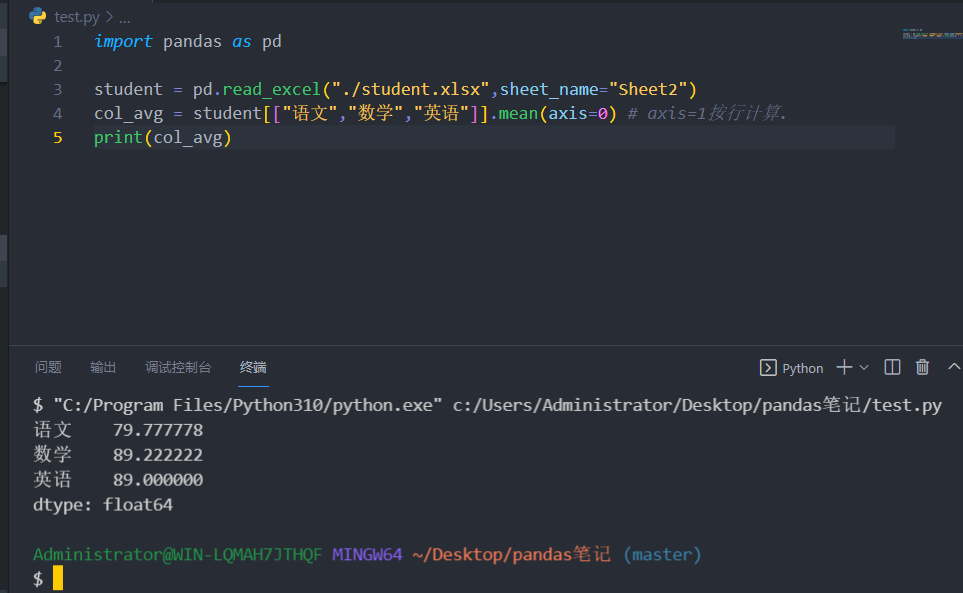
计算列平均
1 2 3 4 5 import pandas as pd"./student.xlsx" , sheet_name="Sheet2" )"语文" , "数学" , "英语" ]].mean(axis=0 ) print (col_avg)
多表联合(从VLOOKUP到JOIN) 多表联合(从VLOOKUP到JOIN)
旋转数据表(行列转换) 旋转数据表(行列转换)
分组统计,透视表 分组统计,透视表
常用的文件操作函数 文件工具类
1 2 3 4 5 6 7 8 9 10 11 12 13 14 15 16 17 18 19 20 21 22 23 24 25 26 27 28 29 30 31 32 33 34 35 36 37 38 39 import osimport shutilclass FileUtil : @staticmethod def scan_file (path ):""" 递归扫描文件夹下的所有文件 """ def _scan_file (path ):for file_name in os.listdir(path):"/" + file_nameif os.path.isdir(file_path): else :return files @staticmethod def clean_dir (path ):""" 清空文件夹 """ if os.path.exists(path):class File :def __init__ (self, path ):self .name = os.path.basename(path)self .path = path
其他网站